 Locumwise
How importing works
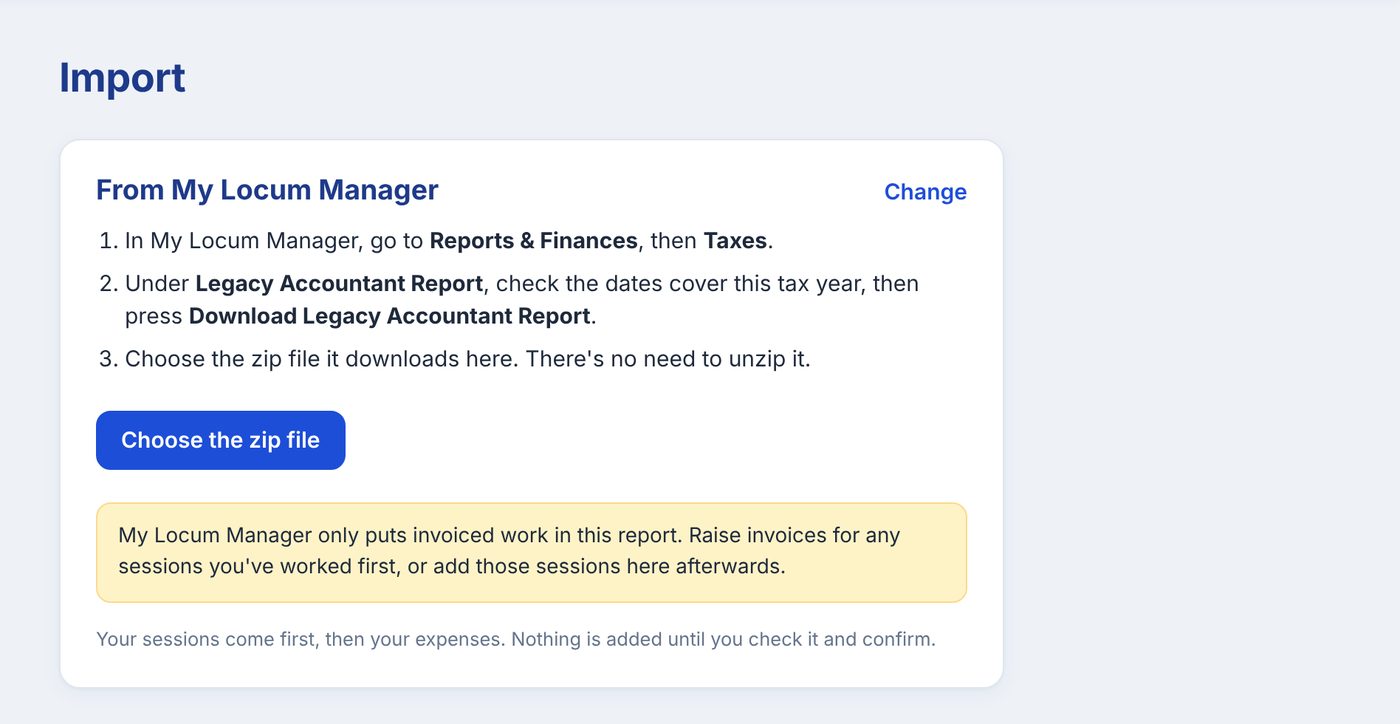
Moving from My Locum Manager, Locum Organiser or LocumDeck takes a few minutes on a computer:
- Export one file from your old app to Locumwise
- Confirm what we find
- That's it! Old data imported
1. Download one file from your old service
Sign in to Locumwise on the website and open Import. Pick the app you're coming from to see exactly how to get the right file to download.
2. Check what we find
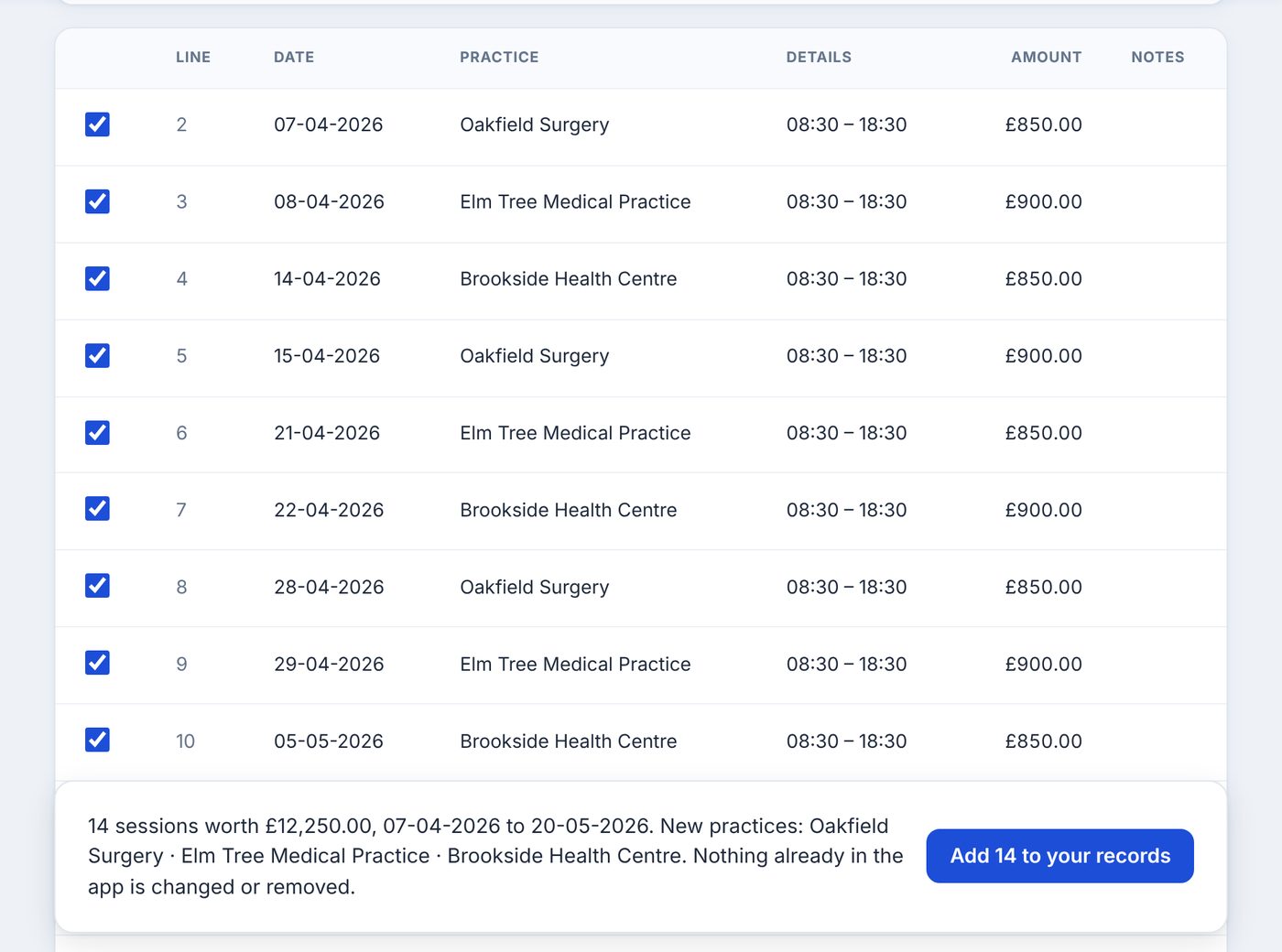
Locumwise reads every sheet in the download and works out which column is the date, the practice, the fee, the invoice number and the date you were paid. You see every session in a list, with the total and any new practices we will add. Untick anything you don't want. Anything already in Locumwise is automatically unticked to prevent duplication.
3. Add sessions
Press Add to your records to automatically add everything. Imported sessions keep their invoice numbers and paid dates, and they never count towards the free plan's allowance.
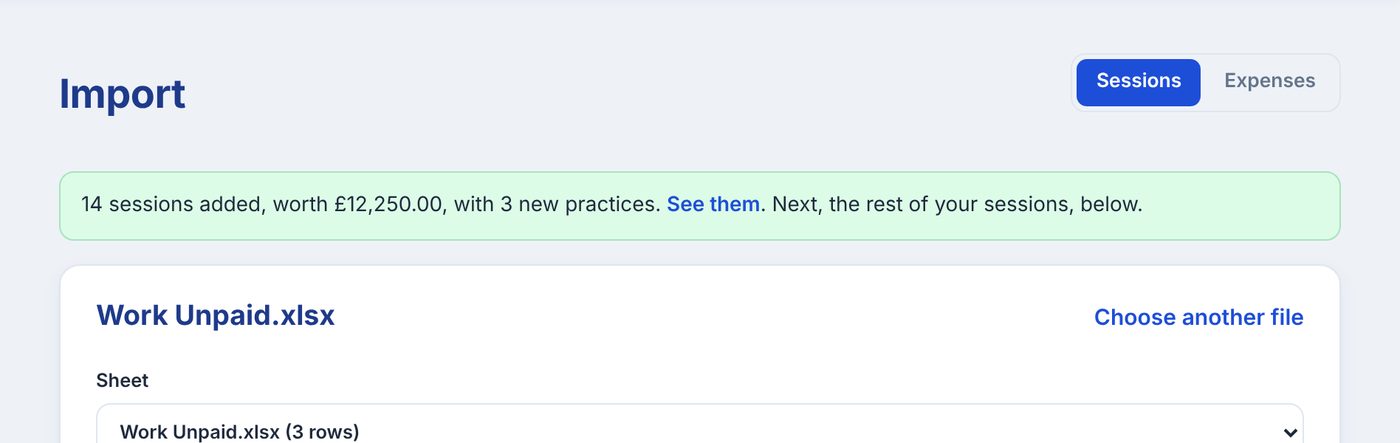
Your tax estimate, quarterly figures and next Form B then cover the whole year, not just the part since you switched. If you use the phone app, everything you import shows there too.
The exact steps for your old app
Still stuck? Contact us and tell us whether you are on the phone app or the website.